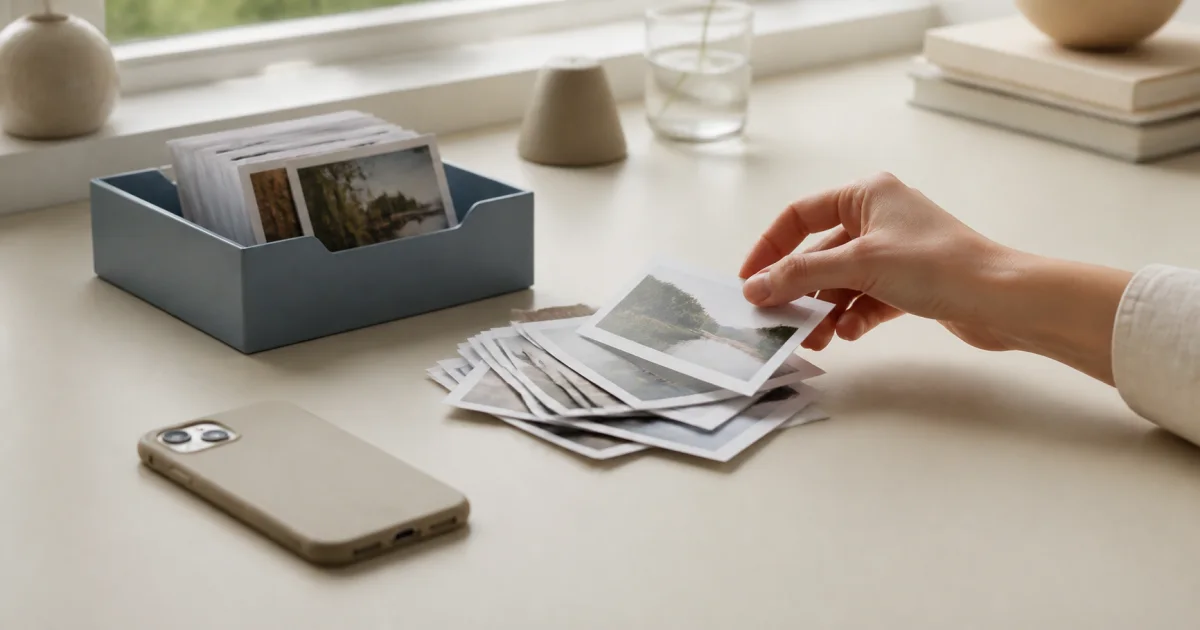
It is easy to forget the step after taking a photo
A common reason a diary stops is forgetting to move photos into the calendar, rather than forgetting to take them. A few days later, you first have to work out which gallery photos are still missing. That extra task can make it tempting to put it off again.
Automatic discovery helps identify the photos you have not added yet.
What automatic discovery does
After linking a device album to a calendar, the app checks for new photos when you open or return to it. It applies to photos from the time linking is enabled. Choose either manual selection or automatic addition by capture date.
In manual mode, review the suggested photos and choose which to include. With automatic addition, new photos from the linked album are added to their capture dates, so check both the album's scope and the selected mode first.
How to turn it on
Open the calendar where you want automatic discovery and go to settings.
Enable automatic album linking and check how photos will be added.
Choose the album to check. Without a linked album there is nothing to scan, so the album selector appears when you enable the setting.
In manual mode, open the suggestions and choose photos to add. In automatic mode, review the entries added by capture date.
Choose manually or add automatically
Manual mode lets you select only the photos you want from the new suggestions. Automatic mode adds new photos from the chosen album, so organize that album first to avoid including unwanted images.
Selected photos follow their capture dates when that information is available. Photos without date information use a fallback date you choose. When reviewing several days at once, check dates before saving.
Things to know
This is not real-time monitoring. Checks happen when you open or return to the app, since the phone does not keep it continuously awake. New photos therefore appear on your next app visit, rather than immediately after capture.
You can change the linked album later.
If the album cannot be found or photo permission is missing, discovery stops and tells you why. Relink the album or grant permission, then restart it.
Both personal and shared calendars are supported. Shared calendars require active membership and permission to write photos.
It is available regardless of plan, including Free.
Ways to use it
If your phone camera already gathers photos in a particular album, linking that album is the simplest approach. If you routinely collect pet or child photos in separate albums, pairing each with a calendar can make the transfer almost effortless.
It also suits concentrated recording over several days, such as a trip. Take photos while away, then review and add them together when you return.
Frequently asked questions
Does automatic discovery immediately add photos to the calendar?
It depends on the selected mode. Manual mode adds only the suggested photos you choose. Automatic mode adds new photos from the linked album according to their capture dates.
Can I use automatic discovery in shared calendars?
Yes. It is free for both personal and shared calendars. Shared calendars require active membership and photo-writing permission, and follow the owner's writing policy.
Does it monitor photos in real time while the app is closed?
No. It checks for new photos in the linked album when you open or return to the app.