What kinds of entries work well as a Photolapse?
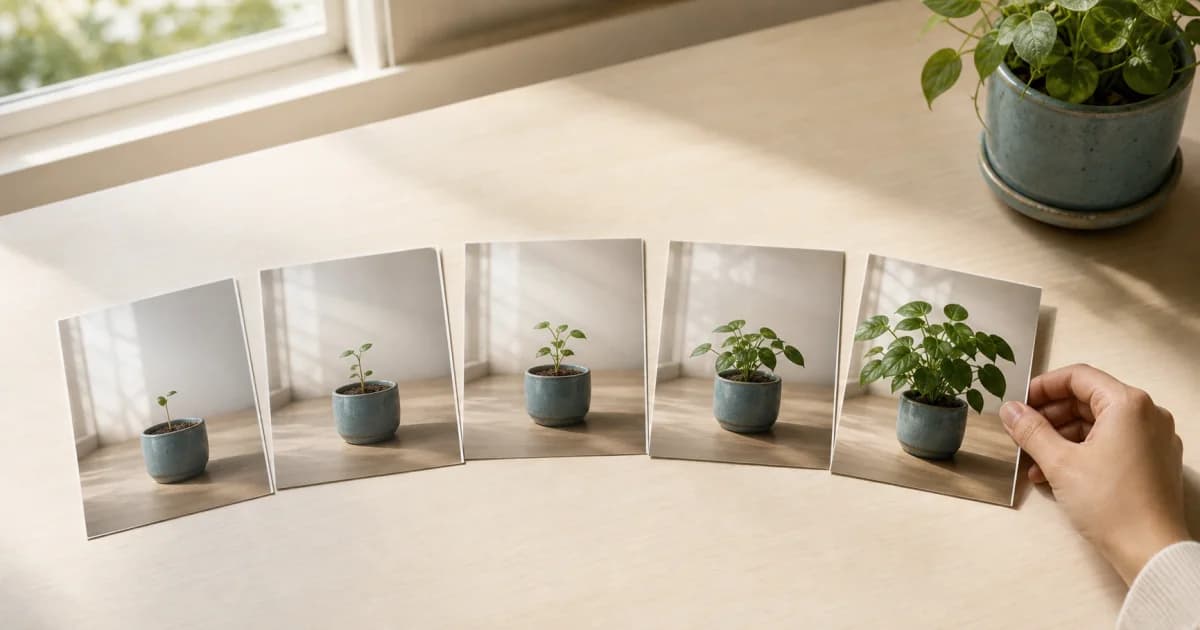
Photolapse suits photos of the same subject or place taken over several days. Connecting changes in a child, pet, workout routine, growing plant, or painting in progress can make development clearer than viewing each photo separately.
Your selected period must contain at least three valid photos. The app uses calendar date order from start to end and the current photo arrangement within each day. The Photolapse screen does not let you select or reorder individual photos.
How do 3:4 and 9:16 differ?
Both 3:4 and 9:16 crop photos around the center to fit the output ratio. The relatively wider 3:4 frame makes it easier to see changes, while 9:16 fills a tall phone screen but may cut off more of the sides.
3:4: a relatively wider, center-cropped frame for viewing changes.
9:16: a center-cropped portrait frame for viewing on a full phone screen.
Either ratio may crop out an important subject that is away from the center.
Steps to create a Photolapse
Choose the start and end dates to include from your calendar.
Check that the selected period contains at least three valid photos.
Select 3:4 or 9:16 to suit the intended output.
Choose whether to display dates.
Select a preset display time per photo or adjust it to your preferred number of seconds.
After selecting the ratio, read the center-crop notice before generating the video.
Play the entire video in the preview that opens automatically after creation, checking the flow and cropping.
Both ratios crop around the center
Both 3:4 and 9:16 Photolapses center-crop photos. A person near an edge or at the end of a group photo may be partially cut off. The narrower 9:16 frame can make side cropping more noticeable.
Read the center-crop notice before creation and play the full video in the preview that opens afterward. There is no screen for excluding individual photos, so if an important subject is cropped out, adjust the aspect ratio or date range and create it again.
Choose date labels and the time shown per photo
Photos taken daily and photos taken a month apart convey different changes, even with the same number of images. Displaying dates helps viewers immediately understand how much time passed between scenes.
You can turn off dates for a simpler presentation. Choose a preset time per photo or enter your preferred number of seconds: shorter for a quick view of changes, longer for closer viewing.
Review who should see the finished video
A sequence spanning several dates may reveal information you overlooked when viewing photos separately. Play the whole video to check for visible addresses, school or workplace signs, and other people's faces.
Creating a Photolapse does not require sharing it. Decide whether to keep it privately or send it only to people close to you before choosing your next step.
Frequently asked questions
How many photos do I need to make a Photolapse?
Your selected start-to-end date range must contain at least three valid photos. The app joins them in calendar date order and follows the current photo order within each day.
Which aspect ratios does Photolapse support?
It supports 3:4 and 9:16, both with center cropping. Read the notice before creation and watch the full video in the preview that opens afterward.
Can I hide dates in a Photolapse?
Yes. You can choose whether to display dates and how long each photo appears, depending on whether you want to show time intervals and how closely you want to view each image.