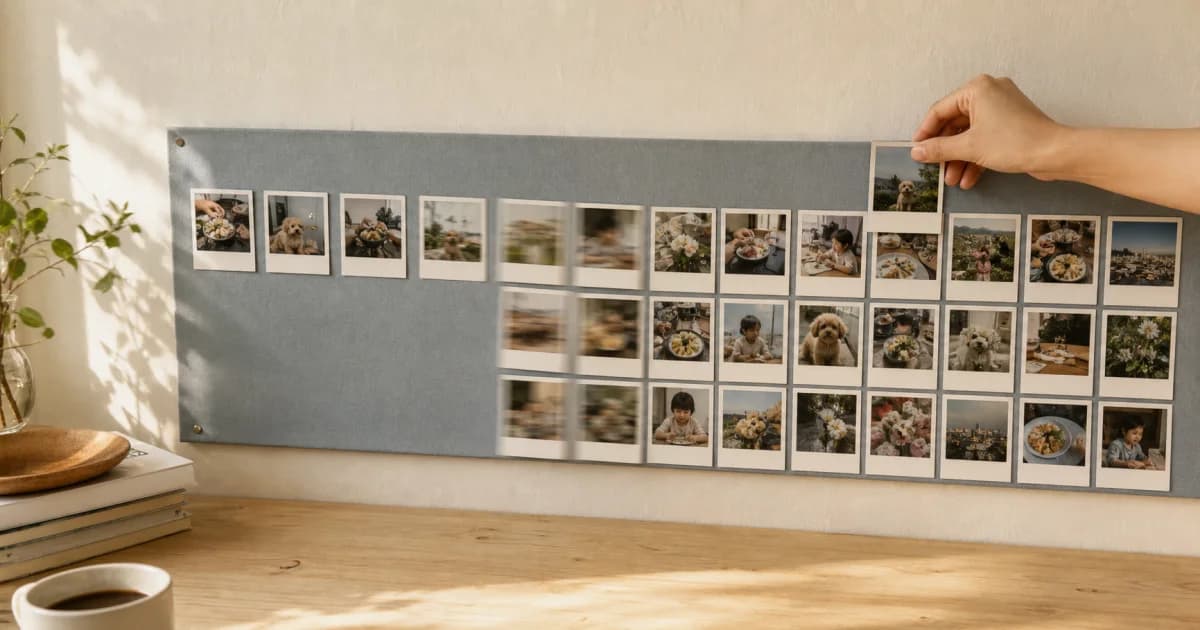
Photo diary PDF, ZIP and photo timelapse guides
Turn the entries you want to revisit into files or videos. Find the right approach for saving photos, keeping a document copy of a diary or watching changes across days.
Create & export
Download Every Photo and Video from One Diary Entry
Save an entry's photos and videos to your device gallery in sequence. Check progress, cloud-file requirements, and partial results before retrying a download.
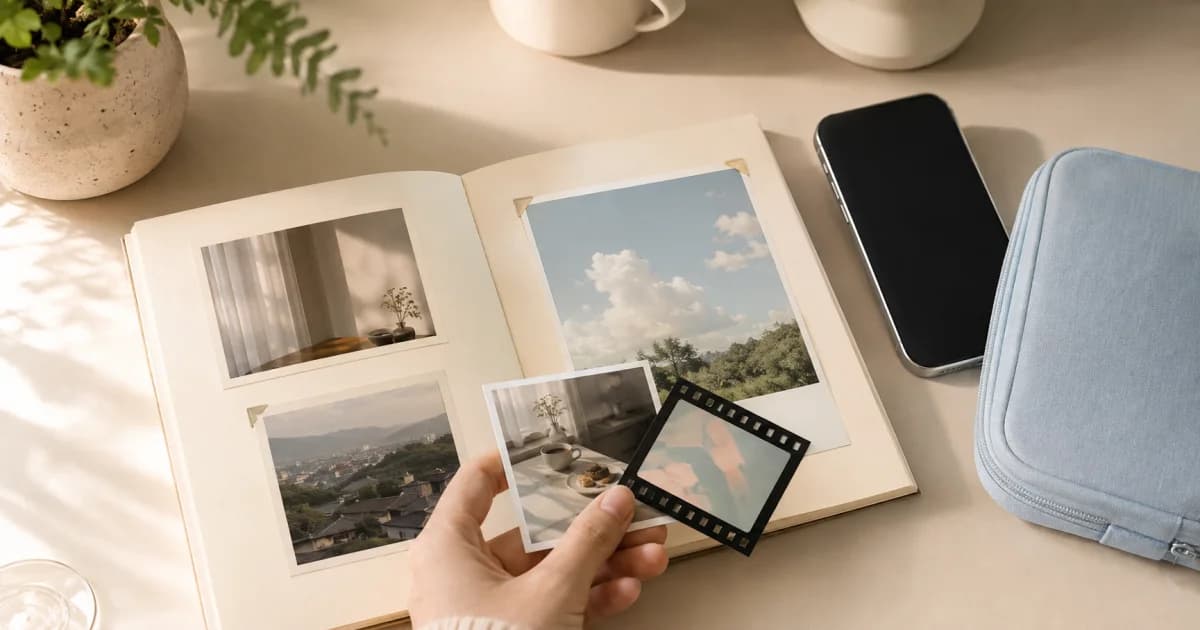
Select and Download Several Album Photos at Once
Use album selection mode to save multiple photos to your device gallery. Narrow the scope first and review successful and failed counts after downloading.
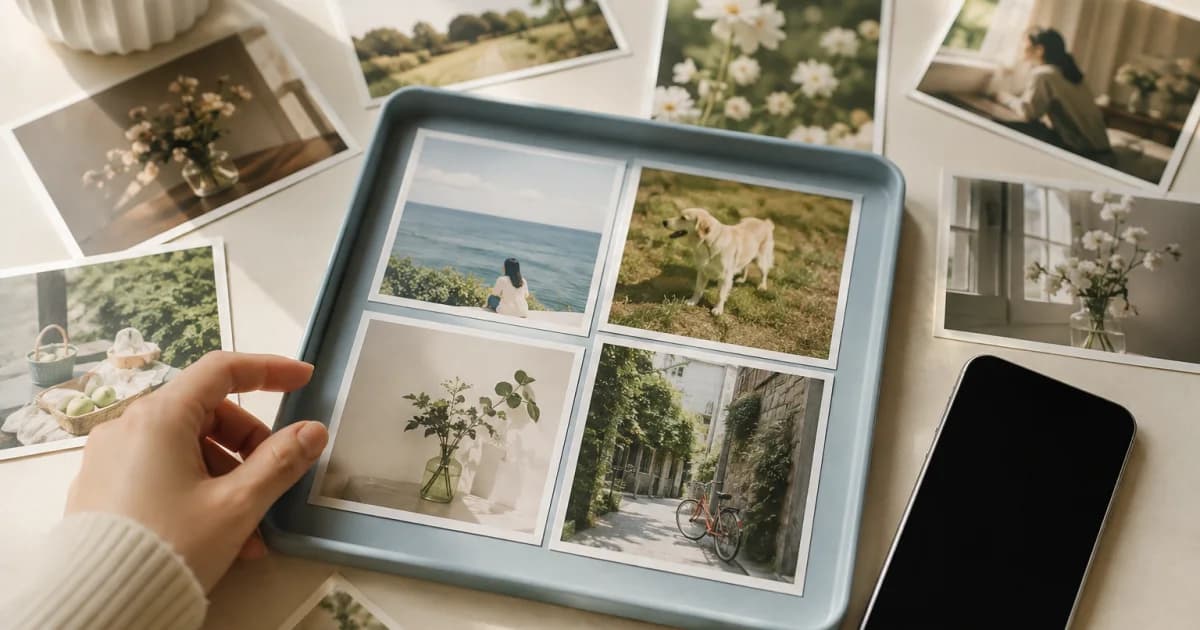
Save One Pogaem Photo to Your Phone's Gallery
Use the download icon in photo details to save one image. Check gallery permission, cloud access, original saved quality, and the result before retrying.
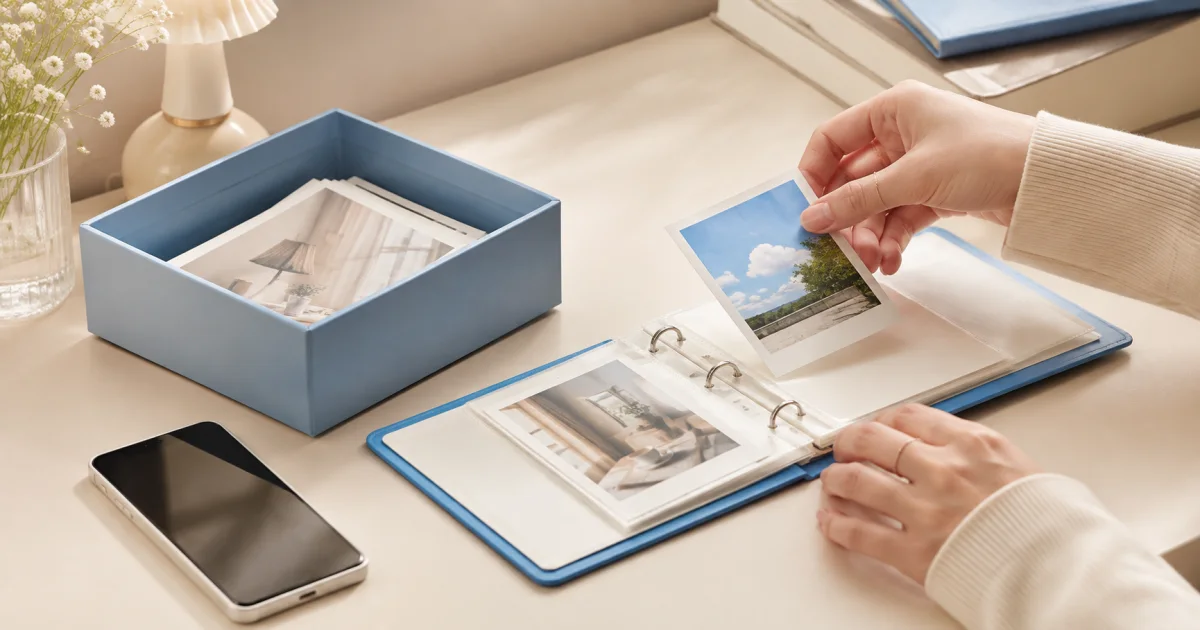
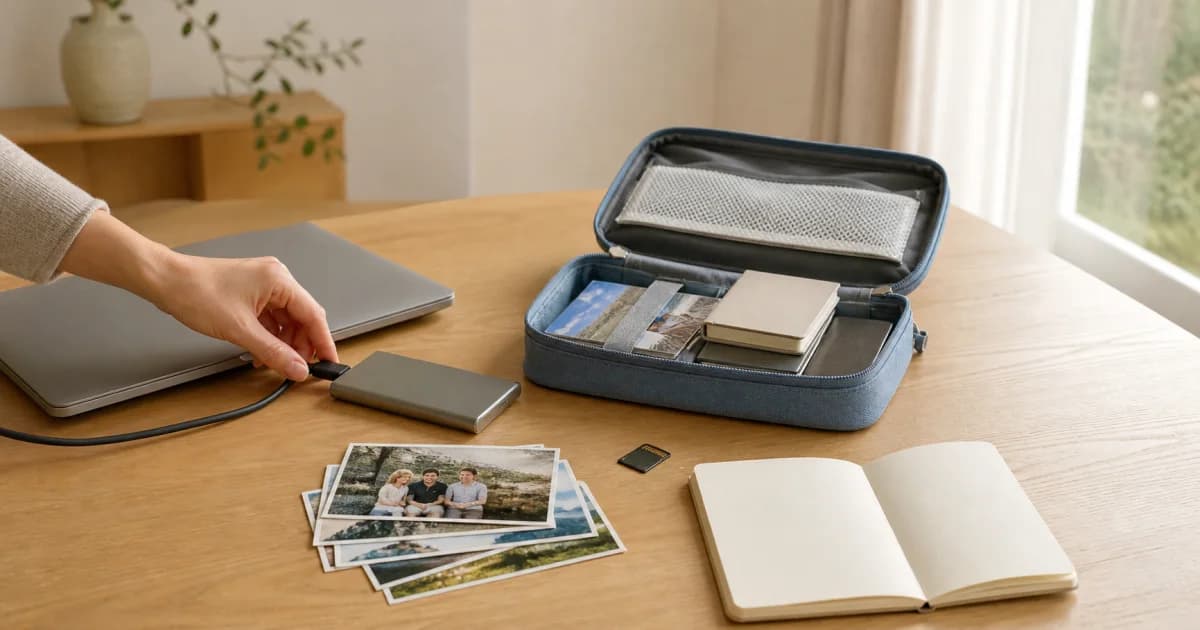
Back Up a Photo Diary as a ZIP File
Export accessible photos, videos, and notes from personal calendars. Check local versus cloud originals, available space, missing items, and the finished ZIP.
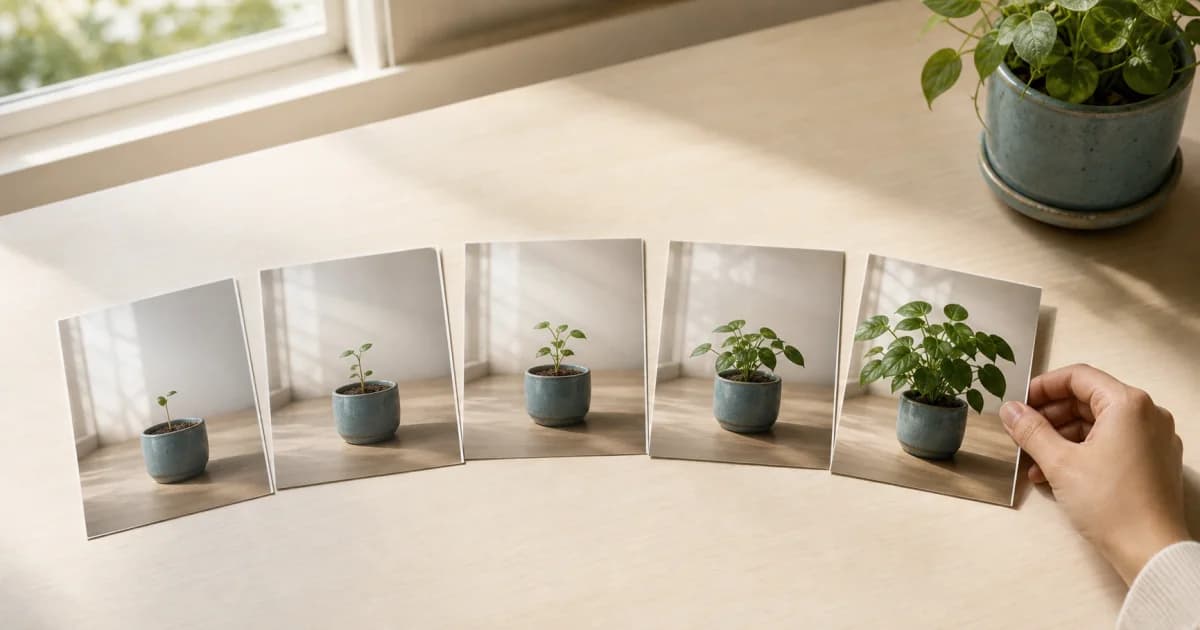
How to Create a Photolapse from at Least Three Photos
Turn a calendar date range with at least three photos into a Photolapse. Choose 3:4 or 9:16, dates, and playback speed, then check the finished video.
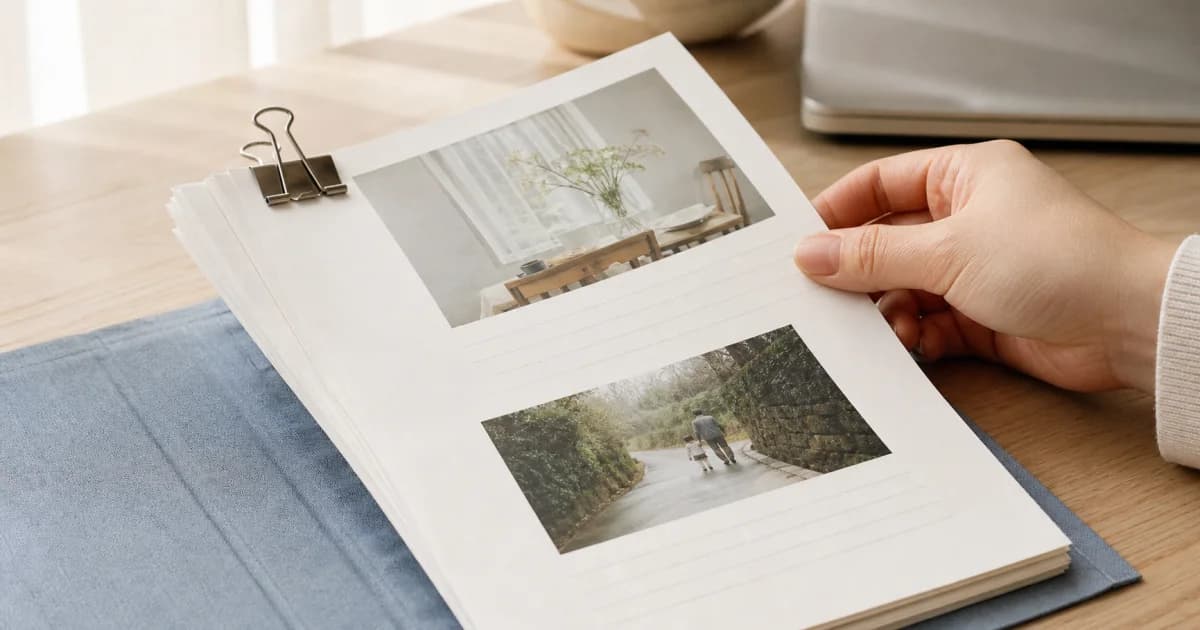
What to Check Before Exporting a Photo Diary as PDF
Pogaem PDFs hold up to 30 entries and 120 photos, with no videos. Learn how to split date ranges and check missing photos in the finished document.
Create a Photo Calendar Image for Instagram
Turn a month of photos into a 1080×1920 Story or 1080×1350 portrait feed image. Review privacy and share it yourself when you are ready.

Turn a Month of Photos into a Three-Second Calendar Video
Review a month as photos fill the calendar in three seconds. Check day covers and privacy, keep empty dates, and see how this differs from Photolapse.