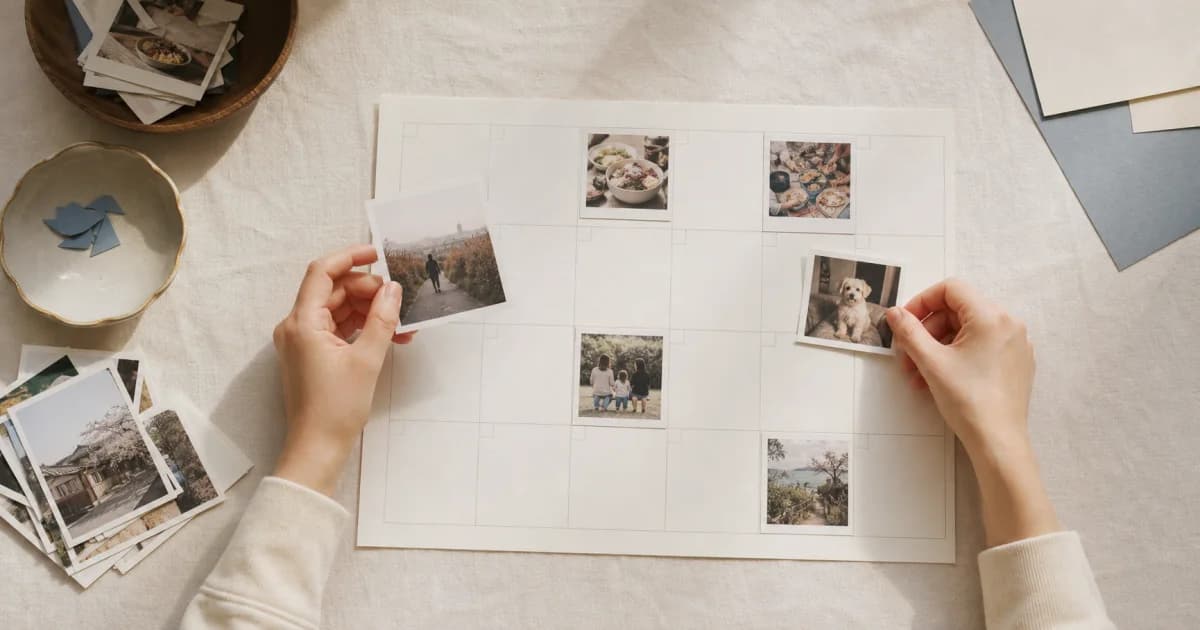
Photos from different days become separate dated entries
In Pogaem, you can select gallery photos and videos from several days at once and save them by capture date. Items taken on the same day go into one entry; items from different days become separate entries on their respective dates.
This is useful for organizing a week's photos over the weekend or adding several days after a trip. You do not need to find a calendar cell and repeat the add process for every photo.
How to add media by capture date
Open the destination calendar and select a fallback date, then choose Add Media to Multiple Dates. Sorting applies only to items you select in the in-app gallery. If an item is not visible, you can use Add with Photo Picker.
Open the calendar where the photos belong and check the selected date.
Choose Add Media to Multiple Dates from the add menu.
Select the photos and videos you want in the in-app gallery. If an item is missing, use Add with Photo Picker.
After saving, check the month and date you are taken to, then open the entries.
Where do photos without capture dates go?
If the device cannot provide an item's capture date, it is added to the date selected in the calendar when you started. The app does not guess arbitrary creation dates for every file, so this fallback date matters.
Check photos whose dates may have changed, such as images downloaded from a messenger or saved again by an editing app. If a date is wrong, open the entry's edit screen and move it to the intended date.
What to know when selecting photos and videos together
Videos with readable capture dates are included in dated entries in the same way as photos. Adding new videos to a personal calendar requires Lite or above.
If you select videos on Free, a payment prompt may appear and the videos may be excluded from the addition. If you only need to organize photos, save those first. When you need video entries, check the limits: up to 30 seconds on Lite and 2 minutes on Premium.
Review the newest saved date first
After the batch addition, the calendar moves to the most recent date among the saved entries. Check the photo count and day cover there, then work backward to find any missing days.
This feature does not automatically scan your whole gallery or analyze image contents to classify them. It organizes only your selected items by capture date, leaving you in control of the scope and subject of the photos you add.
When this approach is useful
Adding by date works especially well when you take photos frequently but open the app only every few days. For topics where progression matters, such as children, pets, exercise, or construction, it restores the original sequence even when entries have piled up.
Organize several days of travel photos in itinerary order after a trip.
Collect a week's workout or meal photos each weekend.
Select photos received from family while checking their dates.
Group photos and short videos from the same day into one entry.
Frequently asked questions
Do photos from several dates all go into one entry?
No. Items with the same capture date are grouped into one entry; different dates are saved as separate entries on those dates.
How are photos without date information organized?
They use the date selected in the calendar when you begin the batch addition. Check dates after saving and move an entry through its edit screen if needed.
Does Pogaem automatically sort every photo in my gallery?
No. It organizes only the photos and videos you select in the in-app gallery, using capture dates. You can choose missing items through Add with Photo Picker. It does not analyze image contents to identify topics automatically.