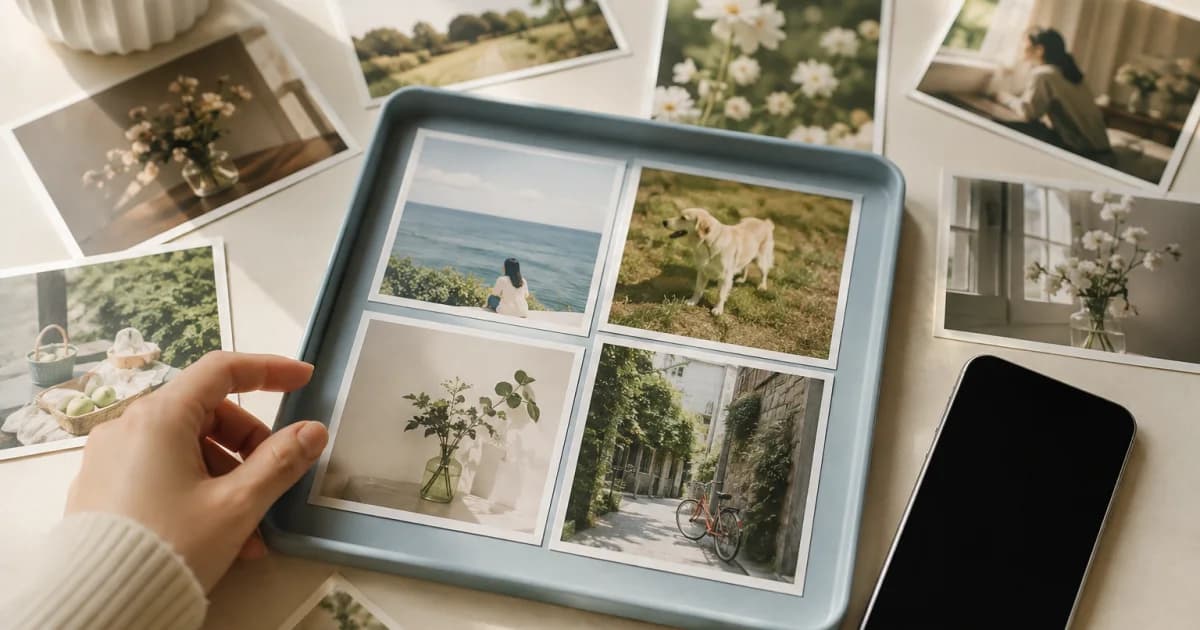
Choose photos across different entries
To save travel scenes spread across dates and entries, you need not open each photo's details. Album selection mode lets you choose several currently loaded images together. Saving a single original is free; batch downloads of multiple originals are available with Lite and Premium.
The album handles photos only. To include videos from one entry, use Download Media in that entry's details.
Save several photos
In Album, first filter the calendar and date range.
Tap Select at the top right or long-press a photo.
Tap every image you want to save.
Tap the download button at the top and review completion.
Filter first to reduce selection mistakes
With every photo visible, similar scenes or another calendar's images are easy to select accidentally. Narrow to a trip period or family calendar before entering selection mode.
The top bar shows the selected count. Compare it with your expected number before downloading, and tap any mistaken selection again to remove it.
Missing local originals are downloaded from the cloud
Photos uploaded on another device may have only thumbnails here. Selected download first retrieves any needed original absent locally, then saves it to the gallery.
A large selection containing remote images needs a stable network. If all files already exist on this device, saving can proceed without cloud downloading.
Partial failures do not undo successful saves
One failed image does not stop the whole job; processing continues with the next. The final notice may show separate saved and failed counts.
Inspect the actual gallery result before selecting failed items again. Repeating unchanged conditions will not fix disabled permission or an unavailable cloud original.
Frequently asked questions
Does long-pressing a photo open selection mode?
Yes. Use Select at the top or long-press the desired photo.
Does one failure cancel every selected photo?
No. The failure is counted while the remaining photos continue saving. Review successful and failed counts afterward.
Are videos included in album selection downloads?
No. The album is photo-only. Download videos through an entry's Download Media action.