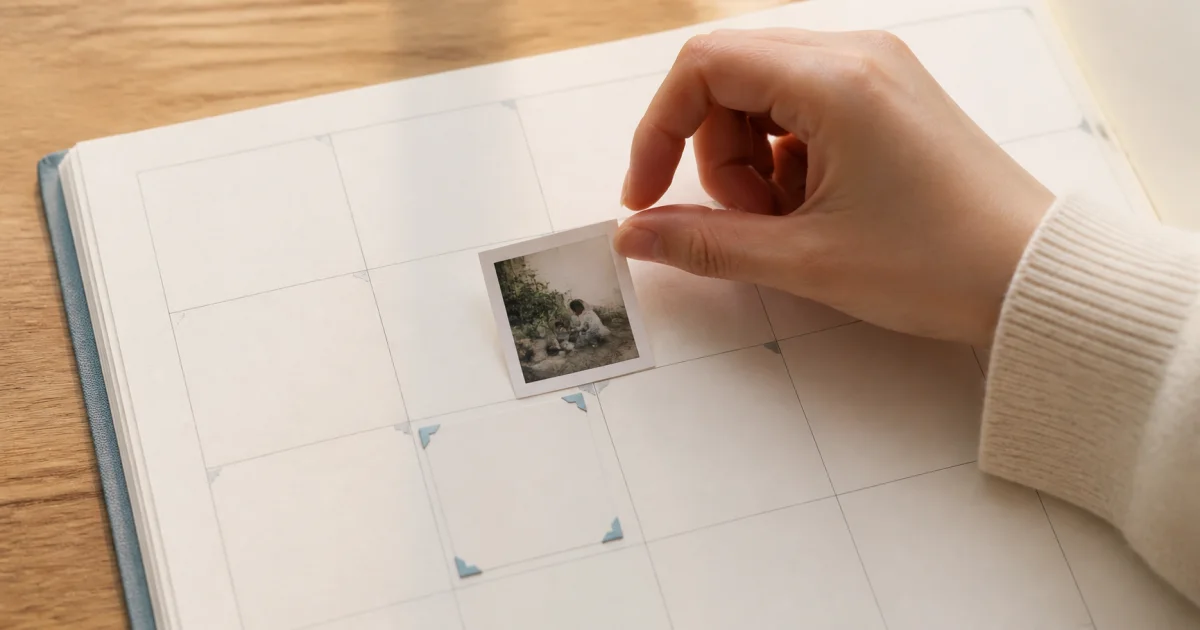
Choose a new date in the entry editor
If a photo diary entry is on the wrong date, open it and change the date in its edit screen. Its attached photos move with it, without copying the photo files again.
This is especially useful after adding several messenger downloads or images without date information. Moving the date preserves the title, text, and photo arrangement without deleting and recreating the entry.
How to move an entry's date
Tap the date row in the entry's edit screen and choose the destination. Future dates may be restricted, so choose the actual day the entry belongs to.
Open the entry on the incorrect date in your calendar.
Choose Edit and tap the date field.
Select the new date for the entry.
Check the move notice and the destination date in the calendar.
If you also changed the title or text, finish saving the edit screen.
A personal calendar may apply the date change immediately
An existing entry in a personal calendar may move and show a success message as soon as you select the new date. Leaving the edit screen afterward does not undo that completed move.
If you chose the wrong date, reopen the date picker and select the original date. Remembering that moving the date is separate from editing the title or text helps avoid confusion.
Shared calendar changes take effect when you save
For a shared calendar, the server moves the entry and its photos and videos together when you save the edit. An online connection and server verification are required so all members see the same result.
If your connection is unstable, check the save result before leaving the screen. If a failure message appears, check the network and try again.
The whole entry moves together
Changing the date moves the calendar placement of the entire entry, including its title and text. It does not detach and move just one photo. If only one of several photos belongs to a different day, review how the entry is organized first.
This does not correct a photo's actual capture time or rewrite the original file's metadata. It changes the date on which Pogaem displays the entry.
Checks that are easy to overlook after moving
After the move, review the destination date's cover and entry order. The calendar may look different if the original date becomes empty or several entries now share the destination.
Check that all photos, the title, and the text appear on the destination date.
Check whether other entries should remain on the original date.
Reselect day covers if needed to show your preferred photos.
For shared calendars, allow time for other members' screens to synchronize.
Frequently asked questions
Are photo files saved again when I move an entry's date?
No. The action changes where the entry and its photos appear in the calendar without copying the photo files again.
Will canceling the edit restore the original date?
Existing personal calendar entries may move immediately after date selection, so closing the editor does not undo the move. Reopen the date picker and select the original date.
Can I move just one photo to a different date?
The date change in the entry editor moves the entire entry together with its title and text. If you need to separate one photo, reorganize the entry first.