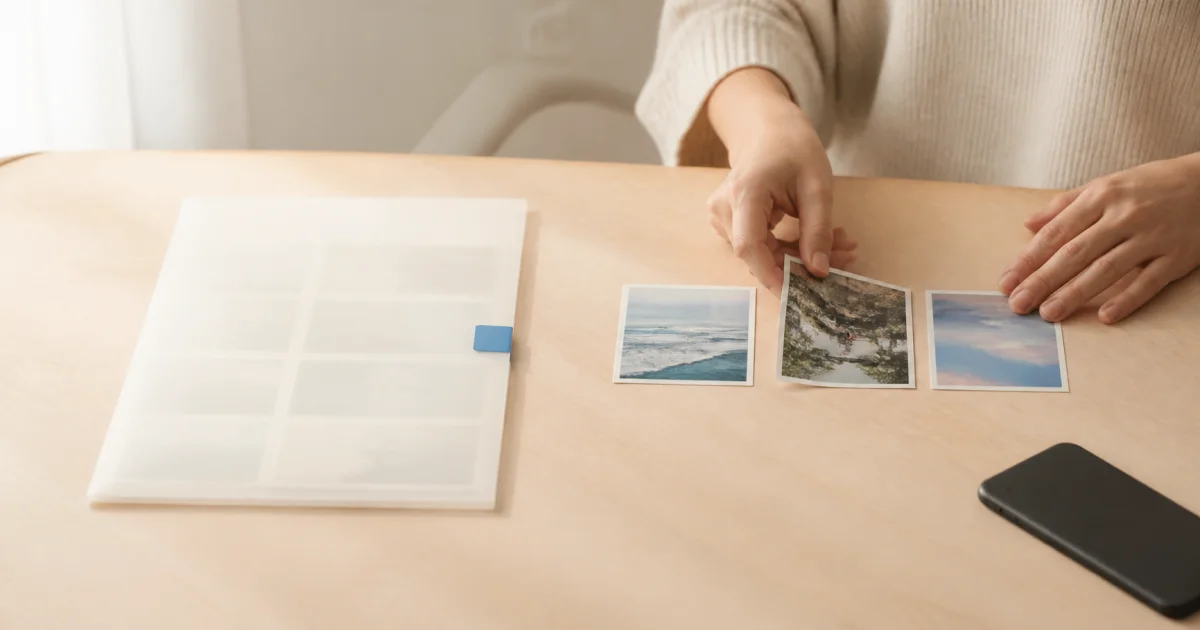
Limited access shows only the photos you allow
If you restrict photo access to selected items in iOS or Android, Pogaem displays only photos and albums within that scope. It does not bypass permissions to read other photos or automatically inspect your whole gallery.
If an album looks empty or you cannot find a photo, check the current access scope first. What looks like an app error may simply mean the operating system is supplying only the selected items.
How to add only the photos you need
For a one-time addition without expanding permissions, the system photo picker is the simplest option. This route gives the app access only to the items you choose at that moment.
Choose to add photos while creating a new calendar or writing an entry.
Select photos from an allowed album, or open the system picker through an option such as Add with Photo Picker.
Choose only the photos you want in the calendar on the operating system's selection screen.
Back in the app, review the selected photos and dates, then save the entry.
Adjust access if you want to keep using an album
To keep a device album linked, its photos must be accessible to Pogaem. If access is too narrow, album covers or new photos may not appear, making album import and automatic discovery seem to have stopped.
Use the app's permission guidance to open system settings and adjust photo access. Menu names and locations may vary by operating system version, so check whether the expected albums appear again in Pogaem.
Cloud-only photos may need a separate selection step
Cloud photos whose originals are not downloaded to the device may not appear in the regular album list. In that case, select the items through a service connected to the system photo picker, such as Google Photos on Android.
The system picker is an additional route for importing files you choose. It does not connect your entire cloud account to Pogaem or continuously synchronize all its photos.
Gallery originals are not changed or deleted
Pogaem copies the originals you select into app-specific storage and processes them to match the calendar's storage format. This does not modify or delete the originals in your device photo library.
Deleting a photo from a calendar and deleting its original from the device gallery are also separate actions. Manage important originals under your device backup arrangements and check Pogaem's cloud storage status separately.
A quick checklist for permission issues
When a photo is missing, check permissions and where it is stored before reinstalling the app. These checks also reduce the risk of needlessly losing photos that exist only on your device.
Check whether Pogaem has access to selected photos only.
Check whether the missing photo has an original on the device or exists only in the cloud.
Check whether the item appears in the system photo picker.
Before deleting the app, check for entries that have not yet been saved to the cloud.
Frequently asked questions
Can I use Pogaem with access to selected photos only?
Yes. You can use allowed photos and albums, and add specific items as needed through the system photo picker.
Does Pogaem automatically find photos outside its permissions?
No. It processes only items allowed by the operating system or explicitly selected through the system picker.
Does deleting a photo in Pogaem delete the gallery original?
Pogaem copies selected originals to app-specific storage and does not modify or delete originals in the device photo library. The two storage locations are managed separately.